From Facebook to Twitter and now Google Plus, there’s something instantly gratifying about knowing what’s going on in your world. But, how much is too much? Is social media truly addicting? If so, do we only have ourselves to blame? The aforementioned study reveals more about the growing social media habit than most people would like to know.
Social Media Is Life
Think about how much time you spend socializing online. Most of us check our social media accounts at least ten times per day. Social media drive the way we think, interact, and communicate with those people around us – or, those people who live far away from us. The strange thing about social media is that many of our connections are people we haven’t spoken to in years – worse, people we’ve never spoken to.
Yet, as the study suggests, we have come to build virtual relationships with our social media contacts. Knowing what someone is thinking, doing, and feeling at all times of the day keeps us connected to the outside world. Social media addiction is a growing habit for sure, but is it a healthy habit?
As Serious As a Drug Addiction
Researchers from the University of Maryland conducted a study earlier this year. Gathering hundreds of students from colleges across the world, these participants were not allowed to use any electronic device for 24 hours. To make matters more difficult for the students, newspapers were not allowed either. All communication with the outside world was suspended.
During these 24 hours, the students recorded their feelings in diaries. Researchers found that many participants experienced depression, anxiety, and some even had physical withdrawal symptoms comparable to the withdrawal symptoms experienced by drug addicts and alcoholics. This has prompted many within the medical community to become concerned.
Recognizing an Addiction
A social media addiction may seem laughable, but the notion of an alcohol, smoking, or drug addiction was once laughable as well. At some point in history, it was perfectly acceptable to do drugs, drink like a fish around the clock, and smoke without concern. As soon as these habits were termed “addictions” help groups and clinics popped up.
Presently, there are no social media help groups. No clinics where people have to check their smartphones at the door exist. But, that doesn’t mean that a social media addiction isn’t real. Try leaving your smartphone behind for one weekend. During that time, don’t use any computers or other devices. Then, see how you react. If you feel like your “hand has been cut off” after leaving your smartphone behind for one day, it might be time to seek help.
View the original article here

Websites can generally be categorized into two categories: ones that provide free content and ones that provide premium/paid content. The free sites make money through online ads and the paid sites make money through user subscriptions. But a web service called “Cleeng” lets you merge these two type of website to maximize your income.
Cleeng is a Europe-based web service that aims to boost a site owner’s income. The service comes as site plug-in that blends flawlessly with your site and development platform. What Cleeng lets you do is divide your site content into free and premium. Such a division lets you earn by the online ads on the free content; if visitors viewing the free content like what you have to offer, they will surely subscribe for the premium content as well.

Cleeng accepts payments through PayPal and credit cards. People who buy your content through Cleeng are able to read on various platforms: computers and different types of smartphones. Therefore by buying your content now, visitors will be able to read it later on any device they want.
Cleeng plug-ins can be downloaded for WordPress, Drupal, Joomla, and Brightcove. The service also offers a PHP SDK and its own API.
View the original article here

Google has just recently announced one of its latest web services: Google One Pass.
Google One Pass is a service that will let site publishers specify their own prices and terms for digital content. This will help site owners and publishers to develop and maintain direct relationships with their customers.
This will also help the readers in getting access to digital content across websites and smartphone applications.
One Pass has its own advantages some of which are:
- Readers who buy content from the service will be able to access it not only computers, but also on smartphones and tablets.
- One Pass lets publishers authenticate existing subscribers. Because of this existing readers do not have to re-subscribe in order to access their content on new devices.
- Because the control of prices will completely be in the developer’s / publisher’s hands, he/she can try out different models to see which one works best.
- One Pass lets publishers optionally provide free and discounted access to digital content.
- The payments are handled via Google Checkout.
One Pass was announced at Humboldt University in Berlin by Eric Schmidt. Currently the service is available for publishers in Canada, France, Germany, Italy, Spain, the U.K. and the U.S.
View the original article here
If you are a blogger, having a good photo editing software
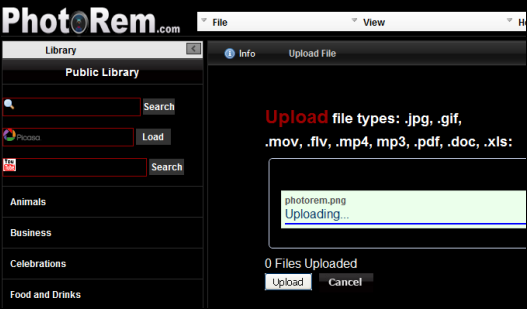
 is really important so that you can easily edit screenshots which can be used in posts. There are many software on the internet which enable users to edit photos but the problem is that most of them are paid and are expensive. However, online editors are becoming really popular these days as you don’t have to install any software and you can perform all your photo editing tasks online and save them. Today, we came across an excellent free online utility, PhotoRem, which enable users to upload and edit images online without installing any software.
With PhotoRem, you can upload all your documents, pictures, videos online. You can even edit images, annotate them, create slideshows, take snapshots from your webcam and later share them on different social networking websites or email it to yourself or any friend. Using PhotoRem is really simple and straight forward. But in order to use the service, you have to make an account where you can upload and perform all the photo editing tasks. You can even upload videos and pictures from YouTube and Picasa.
Upload important files including photos, videos documentsZoom, annotate, paint, filter, crop, resize and rotate images onlineCreate SlideshowsTake snapshots from webcam and edit themShare on multiple social networks including Facebook, Twitter and many more·And much more…
.
PhotoRem is a must try online utility for those who work with images and do not want to install any software.
View the original article here
To use the voice feature, all you have to do is install the extension and a small microphone will appear right next to the address bar in Google Chrome.
Using the extension is really simple and straight forward. Just click on the microphone and a small popup will appear. Now hold click on the mic button and speak what you want to search.
You can customize the search engine as well by clicking on the drop down menu and selecting the website where you want to search the specific keyword.
You can even add custom websites and use them as search engine. To do that, right click on the icon and go to options. There you will see the list of default websites which you can search. Now, write the name and URL of the website you want to add and press Enter.
Voice Search is an excellent extension for Google Chrome which can really change the way we search the internet these days and can really save time as well.
View the original article here

SecurelySend is an excellent free web service which allows users to send files up to 200MB to any friend or family. Sending the file to other people is really simple and straight forward. All you have to do is enter the email address of the recipient, attach the file and simply click Send It. With free Securely Send, you can send 5 files per month and you can be confident that it will reach your recipient. You can also buy paid pricing plans which are really cheap and enable you to send large files with other options.
In conclusion, SecurelySend is an excellent and easy to use web service to send and receive files via email.
View the original article here
With Session Manager, you can manage multiple browsing sessions, rename them, open or remove them anytime. First of all, download and install Session Manager. A small icon will appear right next to the address bar along with other installed extensions.
Click on the Session Manager icon and it will automatically save the current opened session. Just rename the session and click Save. You can later open this session by clicking on the Open button for that session.
Session Manager is a really useful extension for Google Chrome which can really save your time so that you don’t have to open all the tabs again and again.
View the original article here

Sony Corporation ("Sony") today announced the launch of "Music Unlimited powered by Qriocity™," a new, cloud-based, digital music service which gives music lovers access at any time to millions of songs from major labels including Universal Music Group, Sony Music Entertainment, Warner Music Group and EMI Music as well as leading independent labels and major publishers worldwide. The "Music Unlimited powered by Qriocity" catalogue will initially offer about six million songs and will continue to expand over time.
Through "Music Unlimited powered by Qriocity," users can play music any time on a wide variety of Internet-connected Sony devices including Sony's 2010 models of network-enabled BRAVIA® TV, Blu-ray Disc™ player, Blu-ray Disc Home Theater system, PlayStation®3 computer entertainment system as well as VAIO and other personal computers. It will also become available on a wide range of Sony's portable devices, as well as on Android-based mobile devices and other portable devices.
"Music Unlimited powered by Qriocity" is initially available in the U.K. and Ireland with service availability in Australia, Canada, France, Germany, Italy, Spain, New Zealand and U.S. to be announced in due course during 2011.
"Music Unlimited powered by Qriocity" is the next extension of services 'powered by Qriocity.' Sony debuted "Video On Demand powered by Qriocity™," a premium video streaming service, in the U.S. in April 2010 and expanded the service to France, Germany, Italy, Spain and the U.K. in November 2010. Through "Video on Demand powered by Qriocity" customers can instantly rent from a growing library of thousands of Hollywood blockbuster movies across Sony's 2010 models of network-enabled BRAVIA TV, Blu-ray Disc player and Blu-ray Disc Home Theater system.
"As we continue to expand Qriocity globally, these services 'powered by Qriocity' offer a single ID log-in and wallet solution, and empower users to easily consume content including music and video across a growing number of integrated devices," said Kazuo Hirai, President of Networked Products & Services Group, Sony Corporation. "Seamless accessibility to content through these fresh user experiences will enrich Sony's network service offerings and continually add value to the unique aspects of Sony's network-enabled products."
Sony has developed "Music Unlimited powered by Qriocity" in partnership with Omnifone, a leading provider of cloud-based unlimited music services, with Omnifone contracted by Sony to coordinate content licensing as well as development and delivery of the service, leveraging its existing expertise in the music industry.
"Omnifone is delighted to partner with Sony to bring 'Music Unlimited powered by Qriocity' to hundreds of millions of Sony and other devices," said Rob Lewis, Executive Chairman of Omnifone. "'Music Unlimited powered by Qriocity' is designed to bring digital music into the homes and living rooms of consumers, as well as to PCs and portable devices, with every users' music experiences synchronized automatically across their devices without needing to manage media files."
"Music Unlimited powered by Qriocity" Features
With Basic (pounds Sterling 3.99 in the U.K. and 3.99 Euros in Ireland) and Premium (pounds 9.99 in the U.K. and 9.99 Euros in Ireland) monthly subscription plans, "Music Unlimited powered by Qriocity" offers breadth of content and easy music discovery, features cited as most important by music enthusiasts.
Unlike many other popular music services, the basic plan permits unlimited forward skipping of the songs to ensure users discover music they want to hear. With access to an expanding catalogue of about six million songs, the basic plan works as an infinite ad-free radio station and subscribers can listen to dozens of personalized channels – categorized by genre, era as well as mood through SensMe™(*1) – without the requirement to download or manage their music files.
Additionally, the premium subscription plan offers a one time 30 day Premium free trial enabling users to listen in full to every song on demand, create personal playlists of favorites, and gain access to premium Top 100 channels which are regularly updated with the latest hits.
By studying users' listening habits, incorporating their 'like/dislike' song ratings, analyzing their existing music collections and more, "Music Unlimited powered by Qriocity" adapts to users' music preferences and constantly tailors music channels to offer the most compatible and enjoyable list of songs. Therefore, the more you listen, the more uniquely personalized your music channels become.
Furthermore, users can also synchronize their existing music files and playlists from other media players including iTunes® into "Music Unlimited powered by Qriocity," and enjoy their existing music at any time across all compatible devices(*2).
(*1) SensMe™ is Sony's proprietary 12 Tone Analysis technology to evaluate music tracks
(*2) Applies to DRM-free music files and to music which has been licensed for playback on "Music Unlimited powered by Qriocity"
"Qriocity™" is a trademark of Sony Corporation
"PlayStation®" is a registered trademark of Sony Computer Entertainment Inc.
"iTunes®" is a registered trademark of Apple Inc.
View the original article here
Bubble translate is an extension for Google Chrome which can help you translate a selection of text inside any website and view the result without leaving the page. Using the extension is simple and straight forward. Just go to chrome extensions page and install the extension.
Once the extension is installed, a blue color icon will appear in the address bar. You will be able to see it if you open any website which is other than the language you selected in the extension options.
If you come across any website which is in any other language other than the language you selected (e.g English), click on the blue box in the address bar. It gives you options to translate any specific text, entire web page or do real time translation.
Select the option you want to use and it will translate according to the option you selected. For example, I wanted to translate one line. Just highlight the line and click Translate Text. It will show the complete translation of the line as shown below:
In the same way, you can use the real time translation or web page translation. In order to change the default language of the extension, go to Bubble Translate options.
Just make the changes you want like changing main language, real time language etc and click Save.
View the original article here
The concern for internet safety is a global phenomenon, mostly for those who are new-fangled to internet. While the prevalence of social networking websites, online communities and internet-enabled processes should be great news for individual, corporate and government users, the concern for safety remains a major source of concern. The 21st century is the age of computers and World Wide Web. Everyone starting from child to old is accustomed with web browsing. But the question arises how much we are safe on the internet? Hackers and malicious software is a great threat to our individual online privacy. So we need to protect our self from these dangerous aspects of internet. Following are some steps that can ensure a safe browsing practice.
1–Use Common Sense
To browse the internet safely, it’s best if you do so by using common sense. Do not click on advertisements that may harm your computer, and stay away from sites that promise “free” items, cash or other services simply by entering your personal information. Just because a website looks official, this does not mean that it can’t harm your computer.
2 – Use a Firewall
To improve the safety of your internet browsing, it’s highly recommended that you install some high-quality firewall software. Having a firewall can help prevent programs from infiltrating your computer, and may also protect against some hackers or internet criminals. Some operating systems (such as Windows 7) include a built-in firewall, which should be enabled at all times in order to protect your computer. Even though using a firewall may cause some programs to have difficulty functioning, it’s best if you gain enough technical knowledge to properly use your firewall software.
3- Use Strong Passwords
Ensure data security by using strong passwords for your online accounts and your system files. Do not use your name or birth date as a password since they are easy to crack. Instead, use a password that contains alphanumeric characters and is at least eight characters long. Also, do not store passwords on your system. If remembering all your passwords is difficult, use a password manager program to organize and manage your passwords. A good password manager program will encrypt all your passwords that it manages. In addition, never share your password with anyone else.
4- Install Antivirus and Antispyware Tools
Use an antivirus and an antispyware tool to keep your system protected from malicious programs, such as viruses, worms, adware, and spyware. Configure these tools to perform regular full system scans on your computer. Also keep these tools up-to-date with the latest virus definitions and security updates to enable them to identify and protect your system from the latest threats. Although the Internet has simplified our daily activities, it is essential that you take the necessary protection to keep your computer safe.
5 – Be Aware
When other people are using your computer, it’s best if you supervise their activities. Even if a friend asks to check their email, its best if you have them login under a other account that you have created for others to use. Having a Guest account on your computer enables you to allow others to use your computer without having to worry about them installing potentially malicious software. When creating a Guest account, disable sharing of important files on your computer. In addition to this, you should always make sure that any sensitive files are password-protected. Don’t load non-essential programs off the Internet, especially things like toolbars, screensavers, or video programs. These programs normally install extra, malicious software that causes problems and often requires a repair to remove effectively. Don’t click on anything in a pop-up and unsolicited links received in email, instant messages, or chat rooms, as it might install malware.
6- Do Not Open Attachments from Unsolicited Emails
Attachments that come with unwanted emails can contain malicious programs, such as viruses and worms. These malicious programs often cause severe damage to your system. Therefore, it is best that you straight away delete any unwanted emails you receive. You must also scan the attachments that you obtain from known sources before opening them. It is recommended that you install antispam software that can automatically scan and prevent impure emails from appearing in your email program’s inbox.
7- Lock icon in the browser doesn’t means it’s secure
When the lock icon appears in the browser, many of us believe we are opening a secure site. This is because the lock icon indicates there is an SSL encrypted connection between the browser and the server to protect the personal sensitive information. However, it does not present any security from malware. In fact, it’s the reverse because most Web security products are totally blind to encrypted connections: it’s the perfect vehicle for malware to penetrate a machine. There have been many cases where hackers emulate bank, credit card sites complete with spoofed SSL certificates that are difficult for a user to identify as deceptive. So keep away from the unknown site which shows lock icon.
8- Keep your Operating System, Software, and Drivers Up-To-Date
It is important that you keep your operating system, software, and drivers updated with the latest software, and security releases from the manufacturer on a usual basis. Using the most recent version of a program will remove any security susceptibility that may have been present in its previous version. As a result, your computer will be less horizontal to viruses and malware infections that use security vulnerabilities. This makes you safer when you use internet.
Subscribe to:
Posts (Atom)